Configgy is a macOS menu bar app: it snapshots Zen Browser, Claude Code, and any folder you point it at into dated zips in your cloud folder — preview the diff, roll back, restore on a new Mac in one click. Passwords and private keys never come along.
Configgy has one model: take a set of paths, version them as dated zips, keep the history, and show you the diff before a restore. Zen, Claude Code, and folders you add all ride the same contract.
1
Pick your targets
Only Claude is on out of the box. Zen and everything else are suggestions you adopt — the app runs fine on a Mac with no Zen at all.
2
Versioned zips
Snapshots land in …/Configgy/ inside Dropbox / iCloud Drive / Google Drive / a folder you choose — 10 kept, deduped, per-host filenames so two Macs never collide.
3
Getting back matters
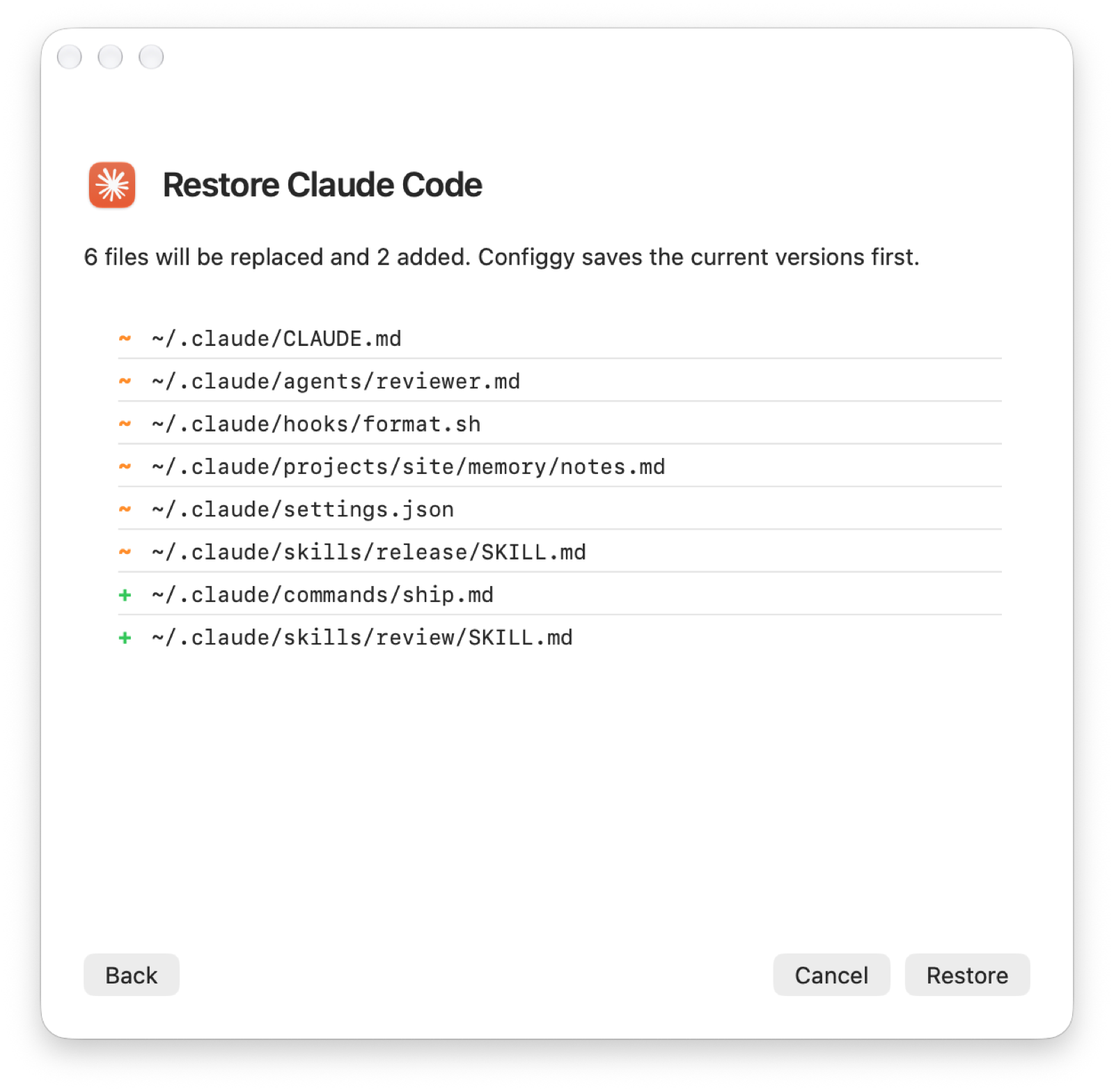
A restore lists what would change and pre-backs-up whatever it overwrites. Picking an older snapshot is the rollback; Zen zips embed a restore.sh that works on a bare machine.
No secrets. Passwords, cookies, history, SSH private keys, and the token-bearing gh hosts.yml are never copied — those come back via your Mozilla account and Keychain. Discovery only suggests config that has no cloud sync of its own.
Features
It guards settings, not your whole home folder
The stuff that hurts to lose but doesn't belong in a blanket cloud sync — that's exactly this app's beat.
🌀
Zen backs up on quit
Quit Zen and the profile is zipped automatically; restore all of it or just chosen workspaces. Ask it to back up now and it confirms again before closing your browser.
✳︎
Claude Code config
Snapshots ~/.claude and ~/.agents/skills; the restore reinstalls plugins, so a new Mac feels like the old one.
🔍
Discovery suggestions
Finds config on this Mac with no cloud sync of its own — shell, git, ~/.ssh/config, Zed, VS Code, terminals, Karabiner, Hammerspoon — and offers it up.
↩︎
Preview, roll back, re-adopt
Restores show their diff; every target keeps a history. On launch it scans the backup folder, so targets backed up on another Mac reappear ready to restore.
🎛️
Clear at a glance
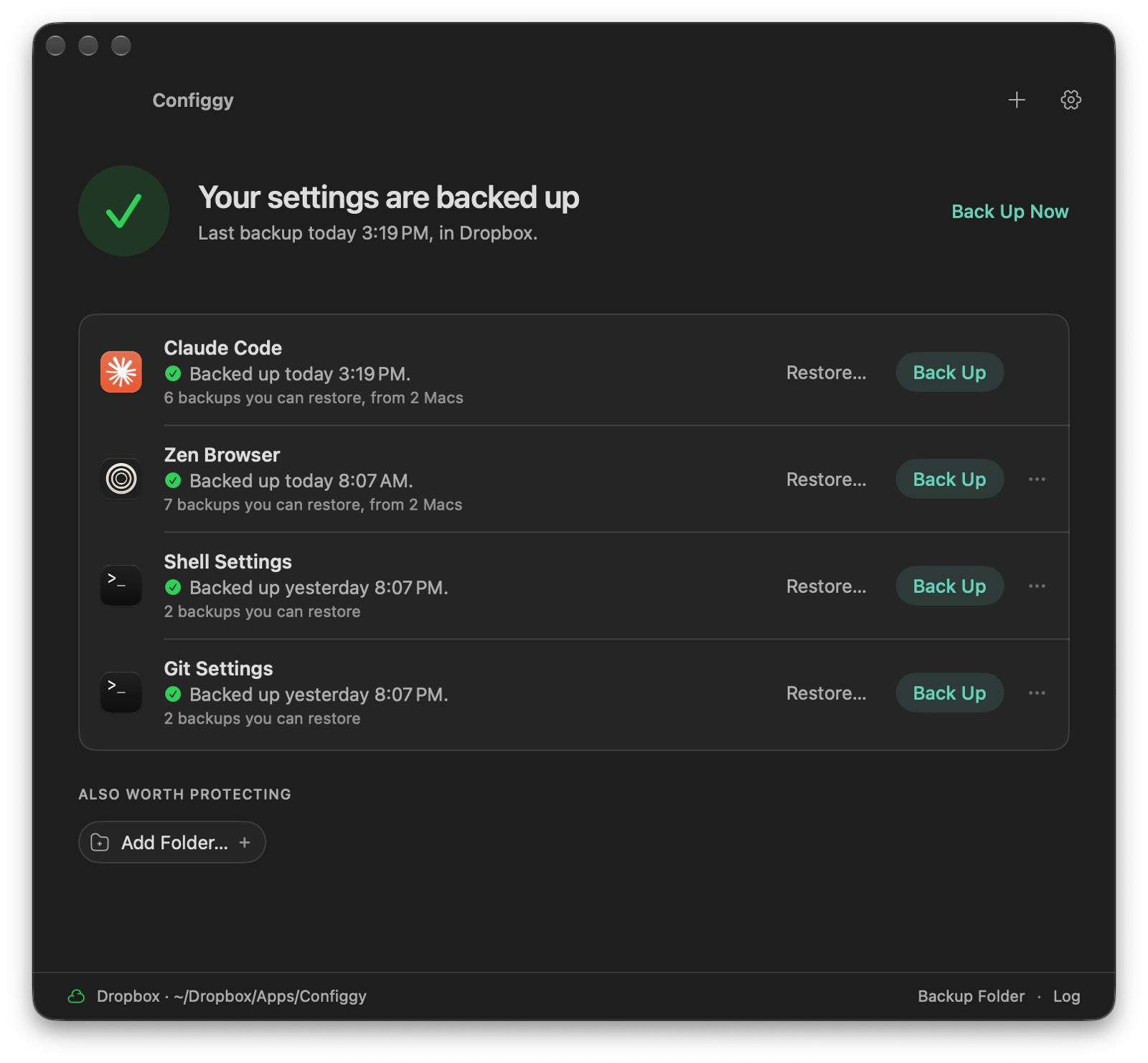
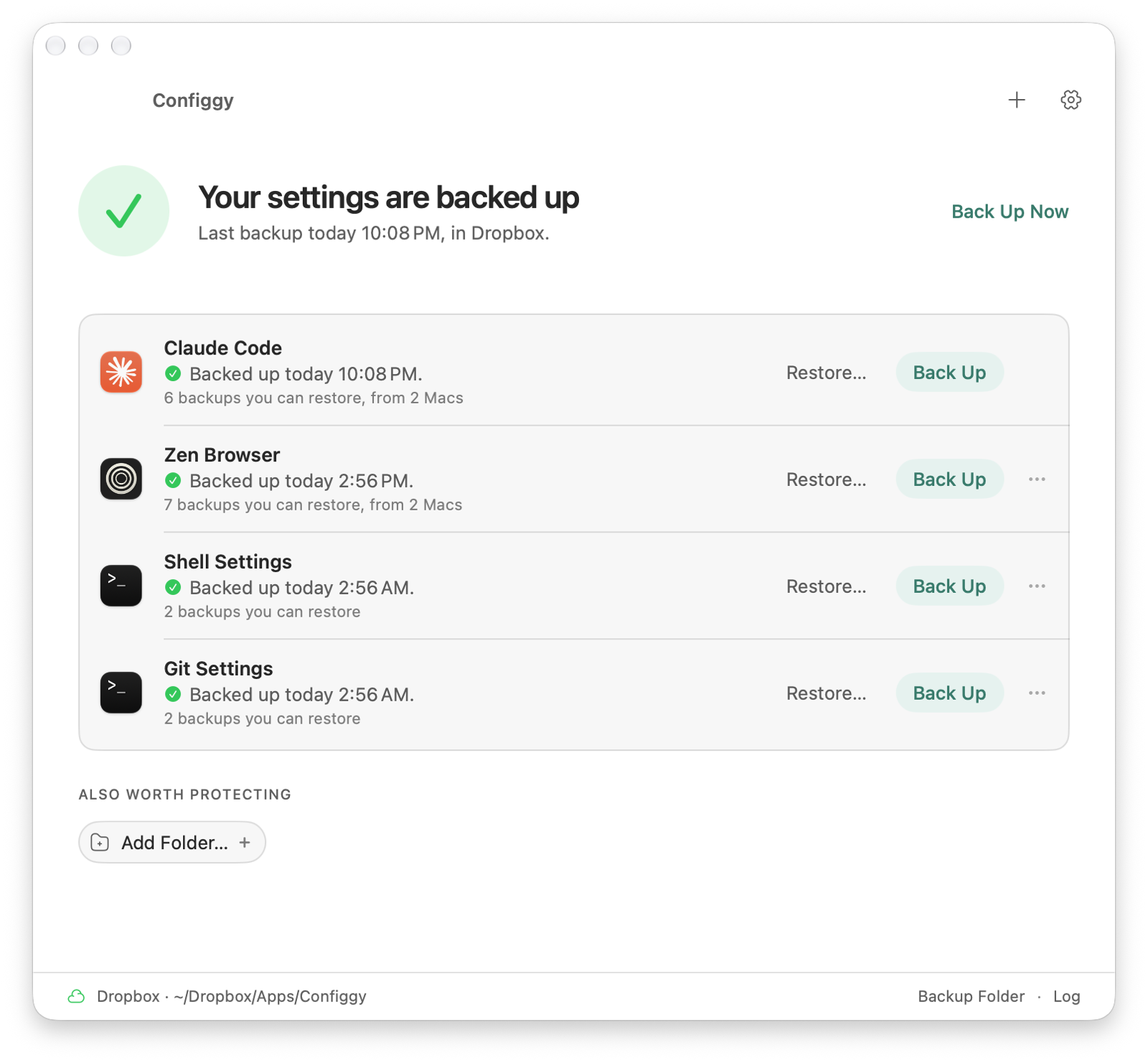
One sentence at the top says whether your settings are backed up and what to do if not; each item shows when it was last backed up. Six languages, and readable in light and dark.
⌨︎
The binary is also the CLI
Configgy backup, list, restore, target-add — all headless, ready for cron or SSH.
Screenshots
What it looks like
Safe at a glance — each target says Protected, Needs Attention or Failed, and why; times read like "Today 00:15", with the Mac they came from.
See it before you restore — every file that will be replaced or added is listed, and the current versions are saved first.
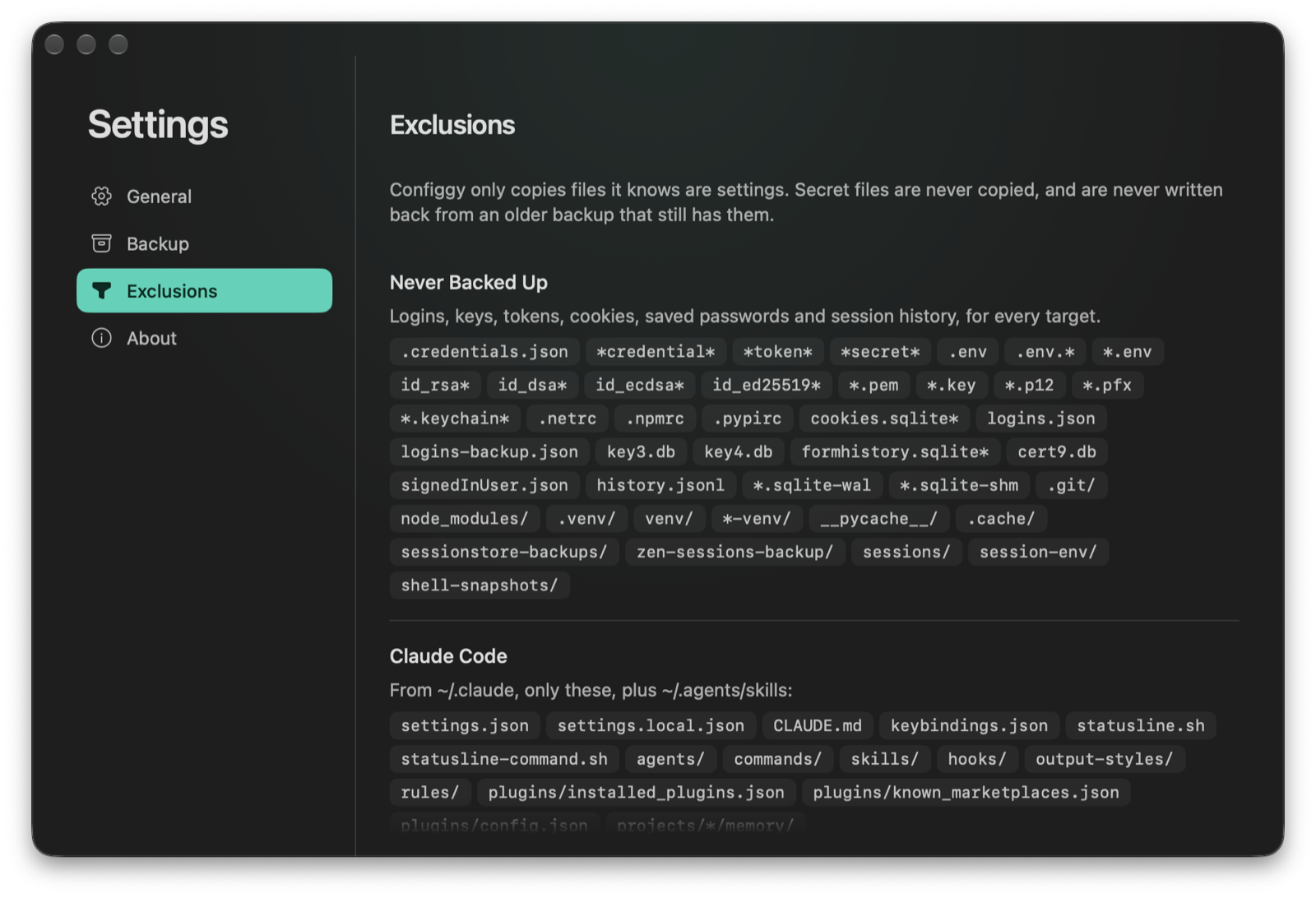
What goes in, what never does — Settings lists the secret files that are never backed up, and exactly what each target copies.
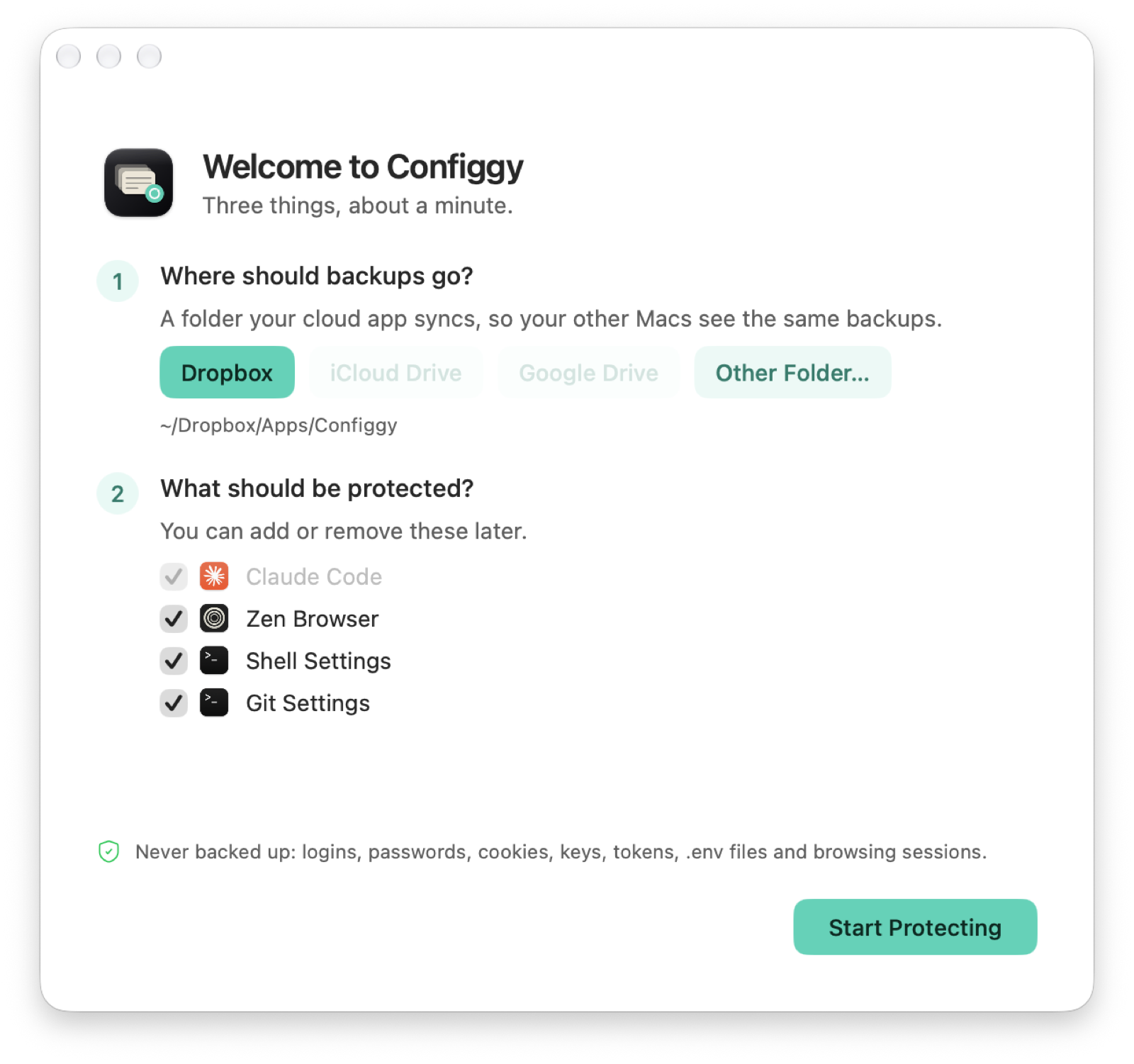
First run — pick the backup folder, tick what to protect, and you're set in a minute.
Install
Grab the zip, drag it to Applications
Four steps, about a minute. Step 3 uses Terminal — don't worry, it's just copy and paste.
Click Download latest and download the .zip file from GitHub.
Open your Downloads folder, double-click the zip to unzip it, and drag Configgy into the Applications folder.
Open Terminal: press ⌘ + Space for Spotlight, type Terminal, and press Return.
Click Copy at the top right of the black box below, go back to Terminal, press ⌘ + V to paste, then press Return. Configgy opens; after that, open it from Applications as usual.
xattr -dr com.apple.quarantine /Applications/Configgy.app && open /Applications/Configgy.app
Wait, what is this? Configgy is a free, self-signed app that isn't notarized by Apple. I don't make apps for a living; I just build small things I find useful and good-looking, and Apple's yearly developer fee isn't in the budget… So macOS blocks the first launch. This line only removes the quarantine flag added when you downloaded it, then opens Configgy. It changes nothing else, and you only need to do it once.
Full Disk Access: Configgy reads protected config folders and writes into a cloud folder like Dropbox — macOS gates both, and never prompts for it on its own. Grant it in System Settings → Privacy & Security → Full Disk Access (the app guides you on first launch). Without it, it can't reach your backup folder.
Never backed up: logins, passwords, cookies, keys, tokens, .env files, browsing history and sessions. Older backups that still have them are found so you can clean them, and restores never write them back.
Use Homebrew? One line installs it, quarantine flag included, and brew upgrade keeps it current.
It started as Zennly, a one-trick app: quit Zen, zip the profile, drop it in Dropbox. Then Claude Code's config wanted the same treatment — and it turned out the answer wasn't a second app but a model: a set of paths, versioned zips, history, diffs, and restores that add rather than clobber.
Configgy is small, open source, and free — a tool I wrote because I needed it. The whole thing grew out of conversations with Claude Code, with the UI tuned from screenshots one round at a time. If it makes your next Mac migration hurt less, it was worth it.